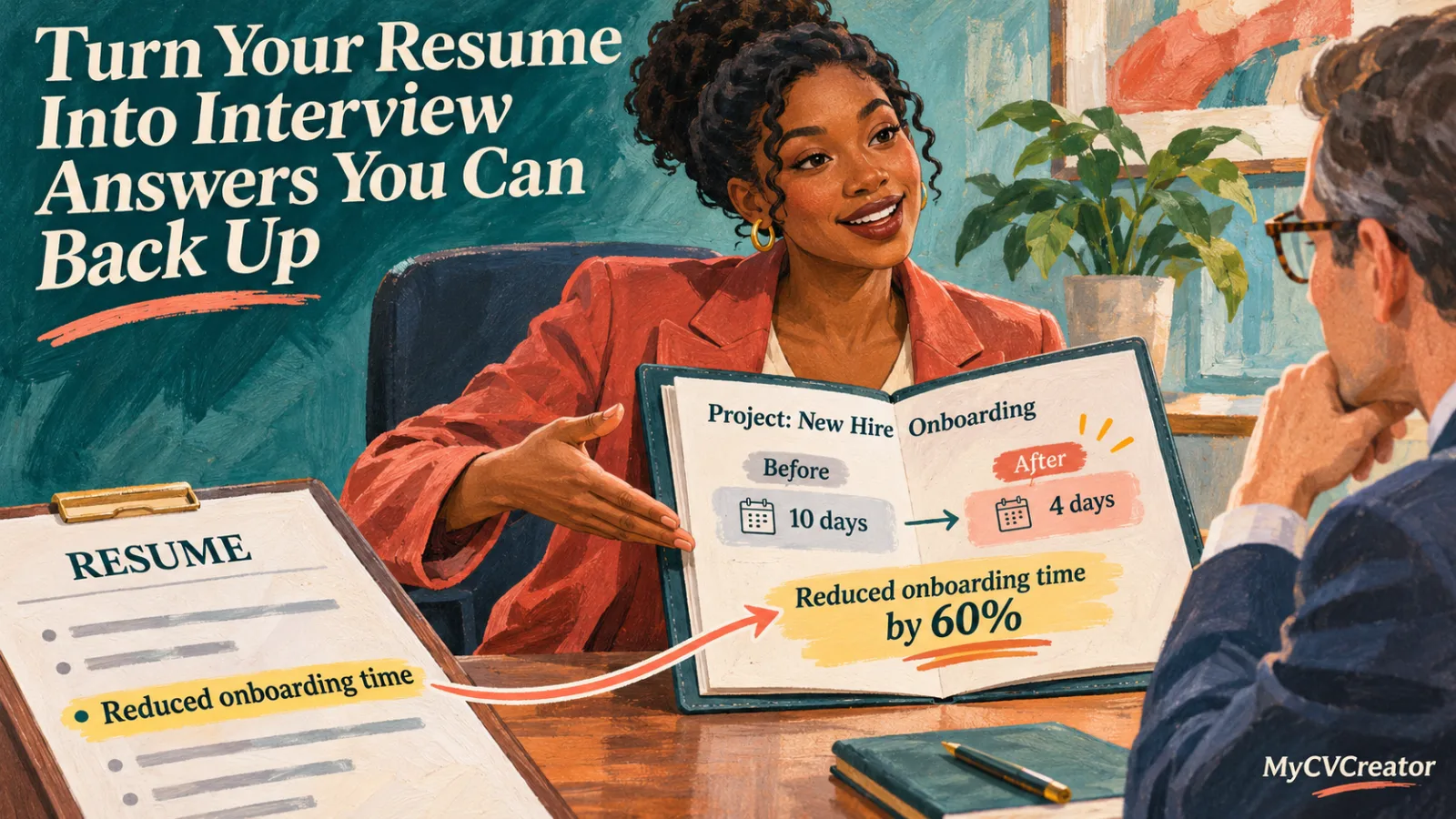
Turn Your Resume Into Interview Answers You Can Back Up
You've checked the link for next week's video interview. Then you notice a resume bullet about a project you haven't discussed in months. You remember the work, but can you explain which decisions were yours?
That's what needs preparing: the details behind the bullet, not a polished speech that makes your role sound bigger.
Turn three resume claims into stories you can explain
Tonight, pick three claims from your resume: one achievement, one project and one skill. Under each, write what you were responsible for, what you actually did and what happened afterward.
Suppose you supported a software rollout by testing workflows and writing staff instructions. Your manager set the schedule and approved the launch. You owned the testing, not the whole rollout.
Build your explanation around a specific problem. Which workflow failed? How did you report it? What changed after the fix? A test log or the guide you wrote can refresh details your resume had no room for.
Keep team results separate from your contribution. If you claim a measured improvement, note where the result came from. Don't manufacture a percentage because the story feels thin.
Then check the resume itself. If “led” overstates your authority, change it. If the bullet is accurate but vague, add detail to your notes. Next to each story, jot down a likely follow-up, such as how you measured the result.
Read the job description next. If the role calls for training colleagues, your staff guide is worth explaining. If it stresses quality control, your testing work may be the better example. Use the same experience, but choose the part that answers the actual question.
What happens during your real interview
MeetAssist's AI interview assistant is a desktop app that listens through your computer's audio and hears both sides of your interview. It works with Zoom, Google Meet, Microsoft Teams and Webex. No bot joins the call.
When it detects a question, it shows a suggested answer in real time, alongside a live transcript of both sides. Before answering, it pulls matching facts from your CV, the job description and your documents and stories in the Answer Bank.
Upload PDF, Word or text files, or type your stories directly. For a question about the rollout, your testing story gives it relevant material to use.
The company describes MeetAssist as “100% undetectable”: the desktop app stays hidden from screen sharing and recordings, with no Dock or taskbar icon.
See which facts are safe to say
The Verified facts feature shows which facts in the suggested answer come from your papers. When MeetAssist writes an answer, it checks the facts against your CV and documents.
While it checks, a small line under the answer says “Verifying facts”. Facts found in your papers turn blue, and the line identifies the source, for example “Verified facts from CV”.
If the answer states facts found in none of your papers, the line says “Unverified facts”. You see at a glance what is safe to say and what you should check before you say it.
That's why you can read the answer without fear: you see which facts are really yours and what needs checking, instead of judging every claim from memory while the interviewer waits.
In the rollout example, the facts about testing and staff instructions turn blue when found in your documents. A claim that you approved the launch isn't part of your story. Leave it out.
These checks also work in other languages and on your phone.
Choose an answer format you can use
Some people want a few prompts. Others need a full answer to keep the sequence straight. MeetAssist lets you choose key points, bullets or a full answer, adjust length and tone, and write your own answer instructions.
For example: “Use plain language and separate my actions from the team's result.” For behavioral questions, turn on STAR to organize the situation, task, action and result. Give the action enough space to explain what you personally did.
Phone Mode lets you read answers on your phone instead of the computer screen.
Handle code and spoken follow-ups
MeetAssist's AI coding interview assistant works during live coding interviews. Scan a QR code to use your phone's browser as a remote. It works on iPhone and Android, with no phone app to install.
Tap Solve on your phone: MeetAssist reads the problem on screen and writes a solution in a small window on your computer, hidden from screen sharing. Explain, Debug and Optimize work the same way. Answer handles the interviewer's spoken follow-up.
There are no clicks or hotkeys on the shared computer. It works with LeetCode, HackerRank, CoderPad and any editor on screen.
Keep your explanation tied to the code. If you describe a trade-off, be ready to point to the part of the solution it affects.
Set up before the call
MeetAssist runs on Windows 10/11 (64-bit) and macOS 13 Ventura or later. Upload your current CV, the job description and your supporting stories, then choose your answer format and instructions.
MeetAssist says its answers start faster than Parakeet AI's, LockedIn AI's and Final Round AI's in its own tests.
Paid plans include GPT-6 Sol, Claude Sonnet 5.5 and every other available model.
As of November 2026, plans are one-time payments with no subscription: $9 for 180 minutes that never expire, $19 for seven days of unlimited use or $29 for 30 days of unlimited use. Every plan includes every feature.
New accounts get 20 free minutes, with no credit card required. Use that time to get familiar with the app before your interview.
After a real interview, MeetAssist emails a report with the questions, how you answered and how to answer better. Use it to spot a story that needs more detail, or a resume bullet that needs clearer wording before the next application.