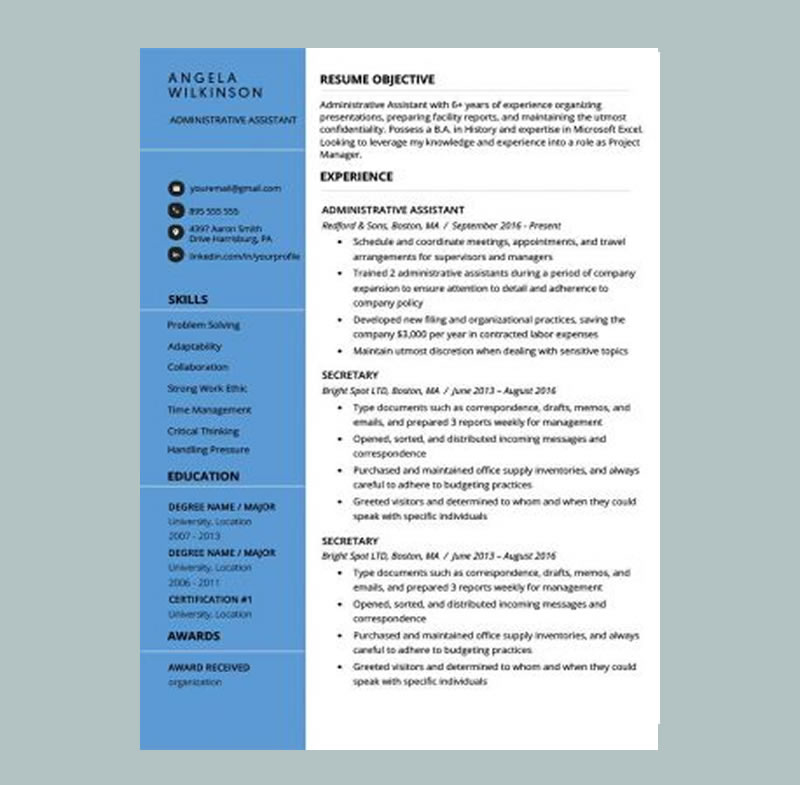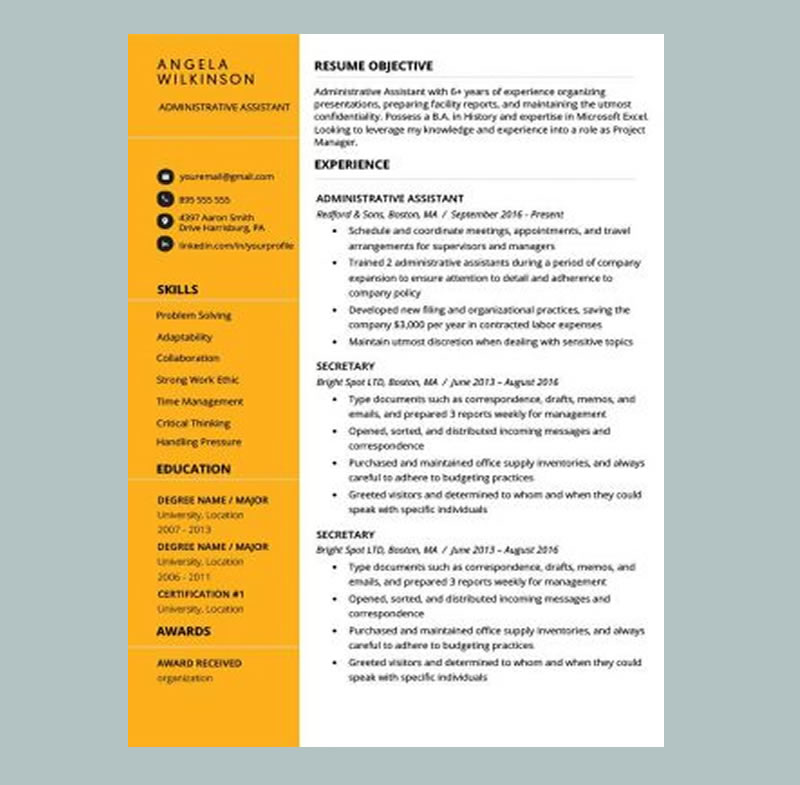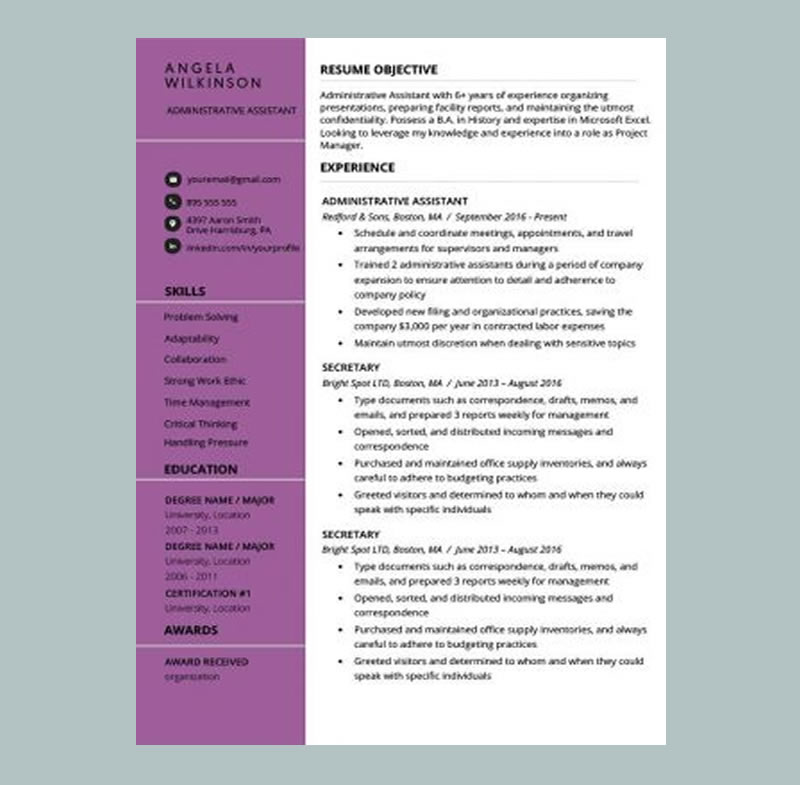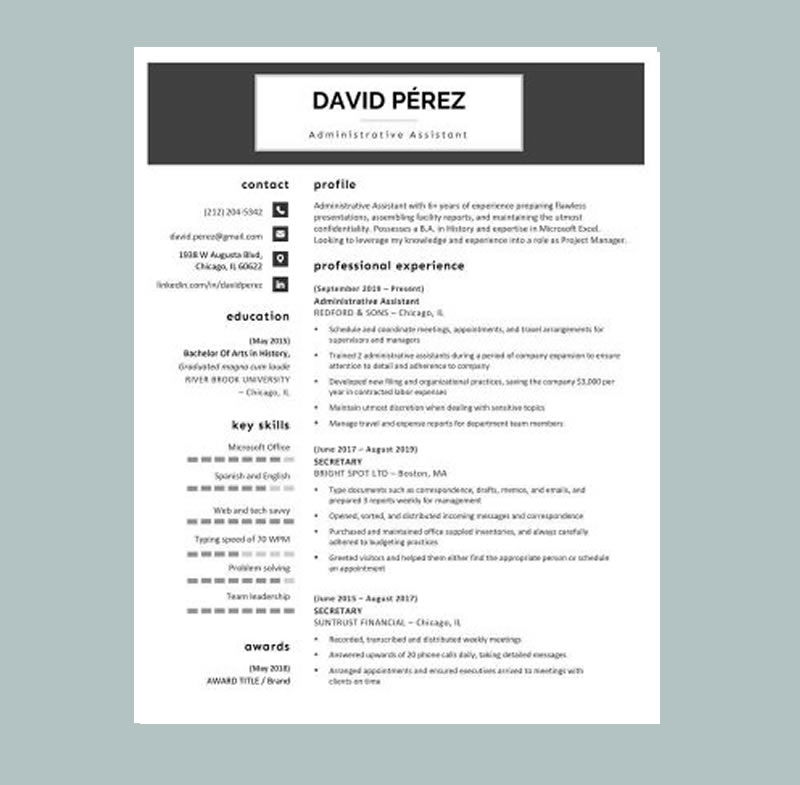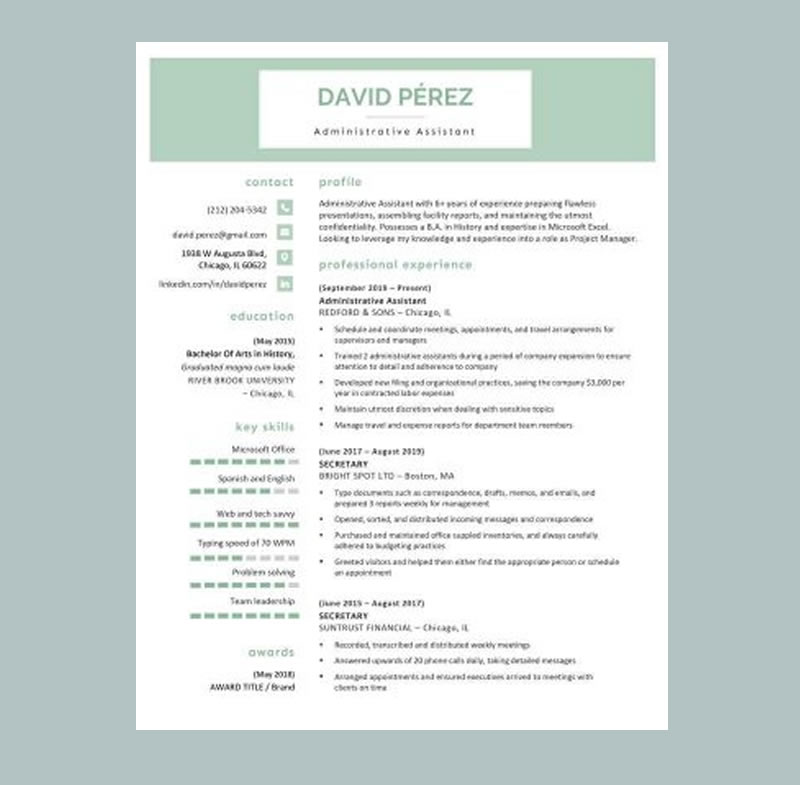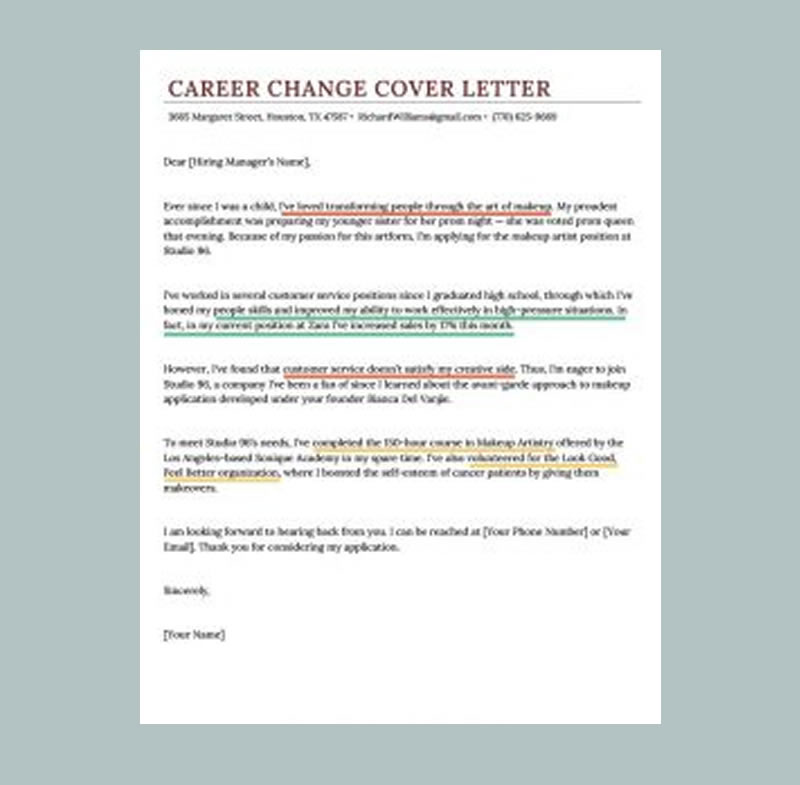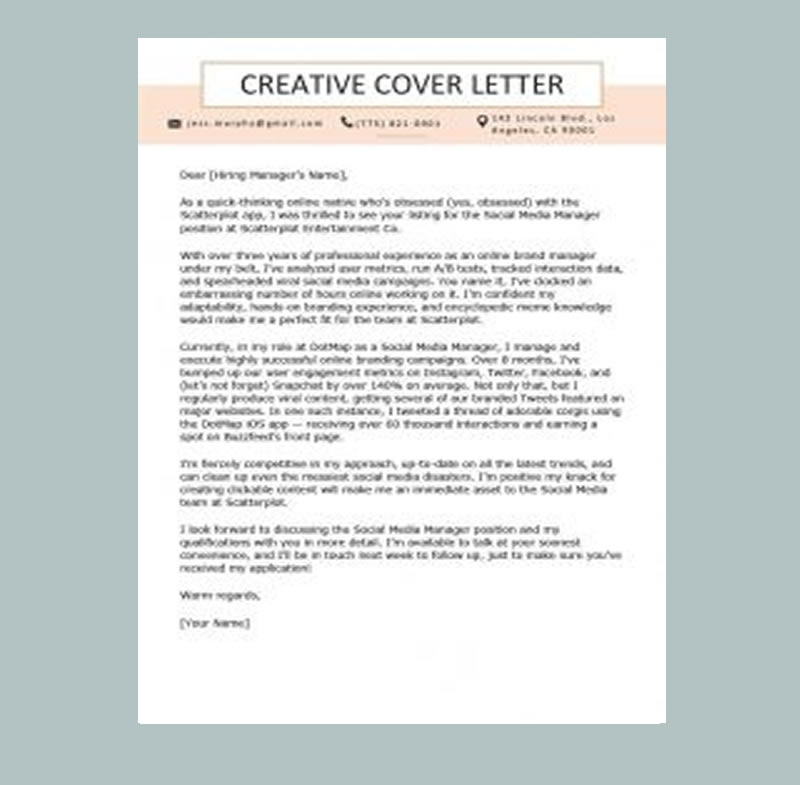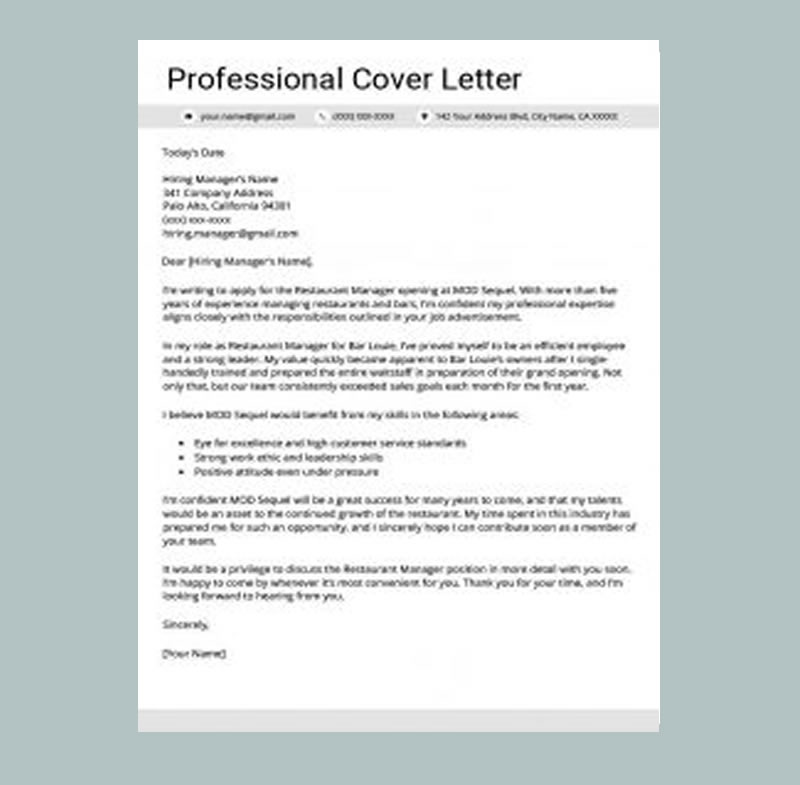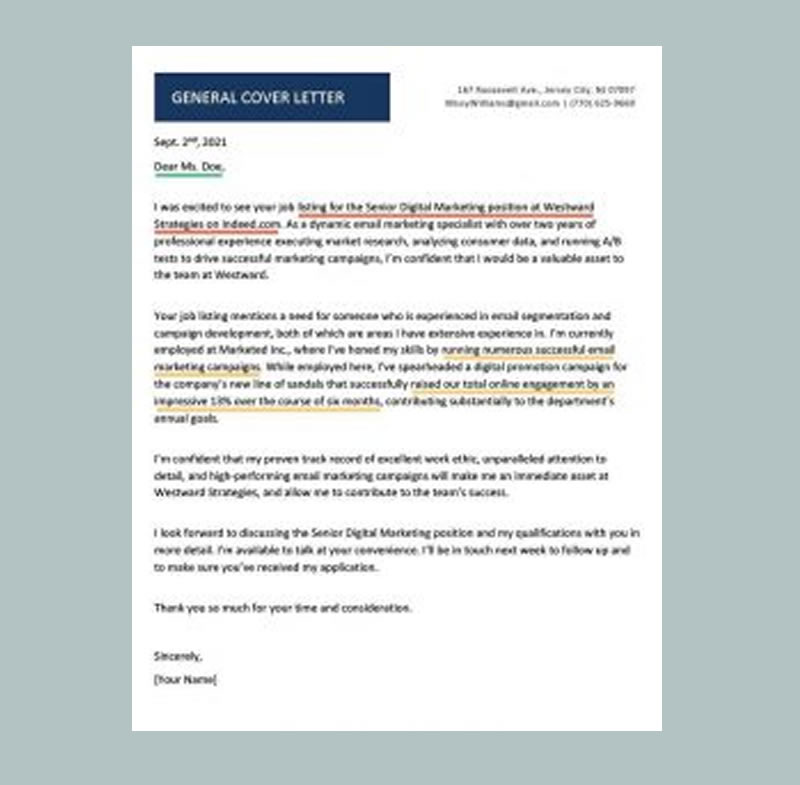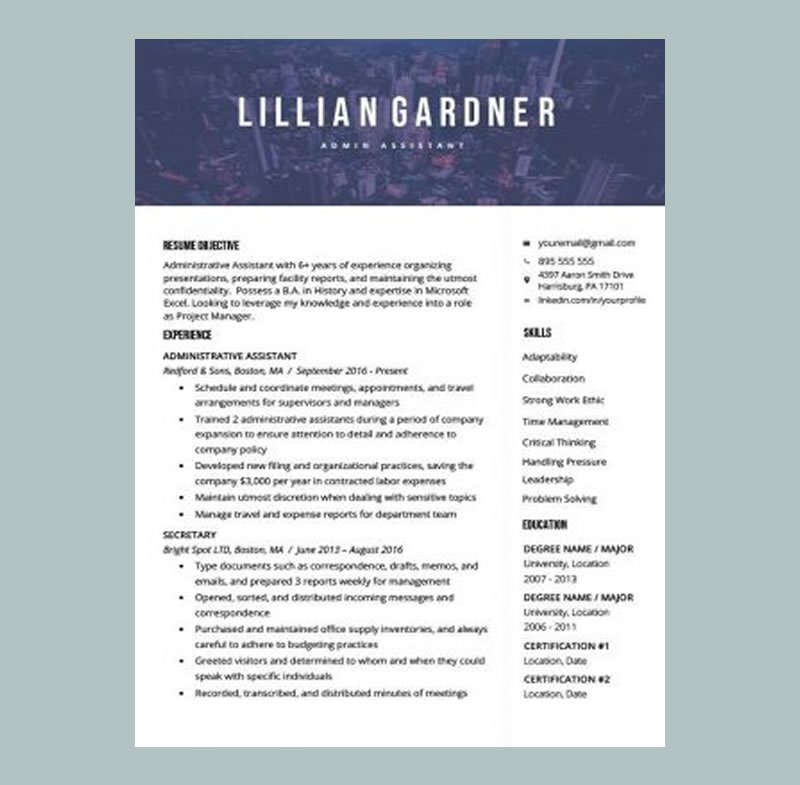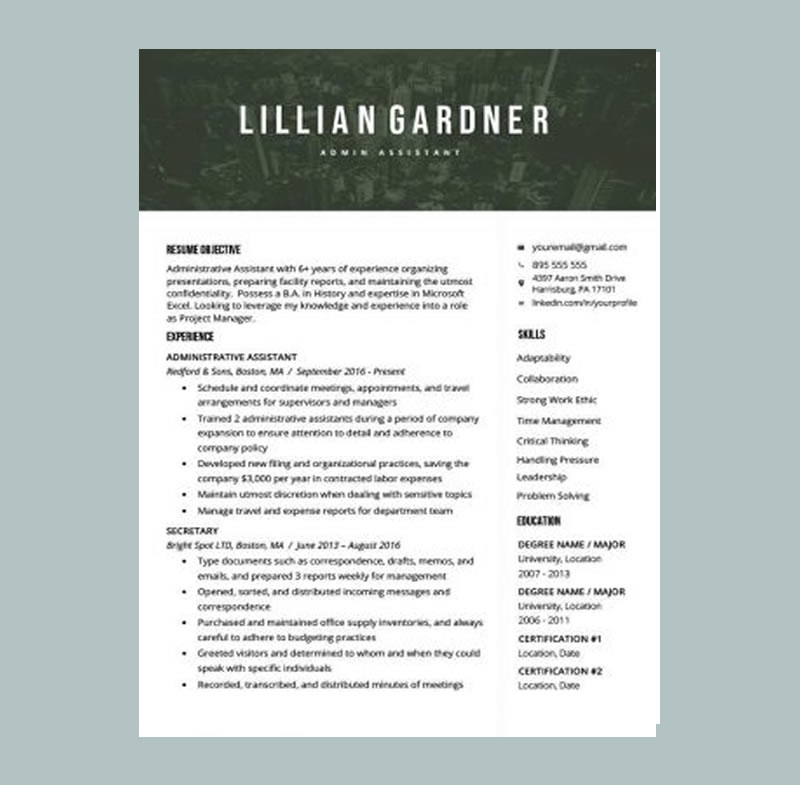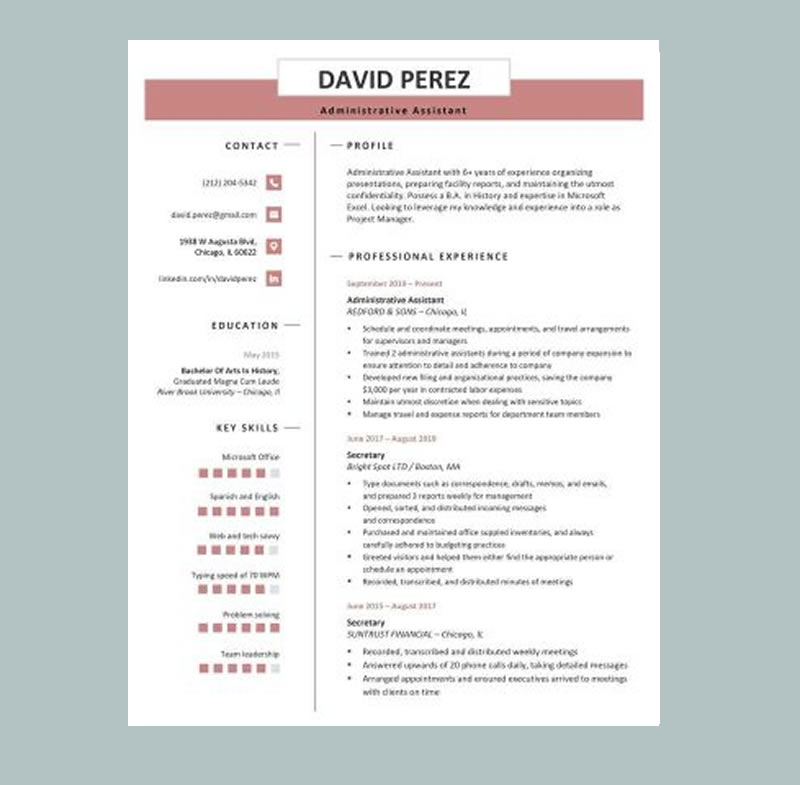
View our easy-to-customize Microsoft Word resume and Cover Letter template and download it free in minutes. Choose a modern, ATS-friendly layout, edit fonts and colors, add your experience, and export a polished resume and Cover Letter for any job no design skills needed. Start today online. Includes 1–3 page options and matching designs.
Download Resume and Cover LetterQuick answers about downloading, editing, and using Word templates on MyCVCreator.
Word templates are editable Microsoft Word (.DOC/.DOCX) templates you can download and customize. They help you create a professional resume or cover letter with clean formatting—without starting from scratch.
Browse Word templatesMyCVCreator Word templates can be used for resumes and cover letters depending on the template style. Choose a layout that matches what you’re creating, then edit the text in Microsoft Word or compatible apps.
Yes. The templates use clear sections and simple formatting so ATS systems and recruiters can scan your content easily. For best ATS results, avoid adding heavy graphics, icons, or text boxes.
Pick based on your role and industry:
• Simple/Classic: best for corporate, admin, finance, and ATS clarity.
• Modern: good for tech, marketing, and business roles (keep it clean).
• Creative: suitable for design/media roles (stay readable and professional).
Open the downloaded file in Microsoft Word (or Word-compatible apps like Google Docs, WPS Office, or LibreOffice). Replace the sample text with your information, keep headings consistent, and update dates, skills, and achievements.
Yes. Upload the .DOCX file to Google Drive, open it with Google Docs, edit your content, then download it again as PDF or DOCX. After editing, double-check spacing and alignment.
Most employers prefer PDF because it keeps formatting consistent. Submit Word only when the application specifically asks for a .DOC/.DOCX file.
Yes, but keep it professional. Use easy-to-read fonts, consistent sizes, and simple colors. For better results, focus more on tailoring your content (keywords + measurable achievements) than on heavy design changes.
Yes. A matching cover letter makes your application look consistent. You can use a similar Word template style or build a cover letter directly on MyCVCreator.
Cover letter templatesSome downloads may require an account depending on how the template is offered. Creating an account also helps you save and manage your documents inside MyCVCreator.
Create an accountCopy key keywords from the job post into your Skills section and rewrite 3–6 bullet points in your latest role to mirror the employer’s needs. Use action verbs and add numbers (percentages, time saved, revenue, tickets handled, projects delivered).
Avoid leaving placeholder text, changing formatting inconsistently, using too many fonts/colors, and adding large graphics that break ATS scanning. Always proofread and export to PDF before submitting (unless Word is requested).