
Zoom Interview Tips: What to Wear, Backgrounds, Lighting, and Everything Else That Actually Matters
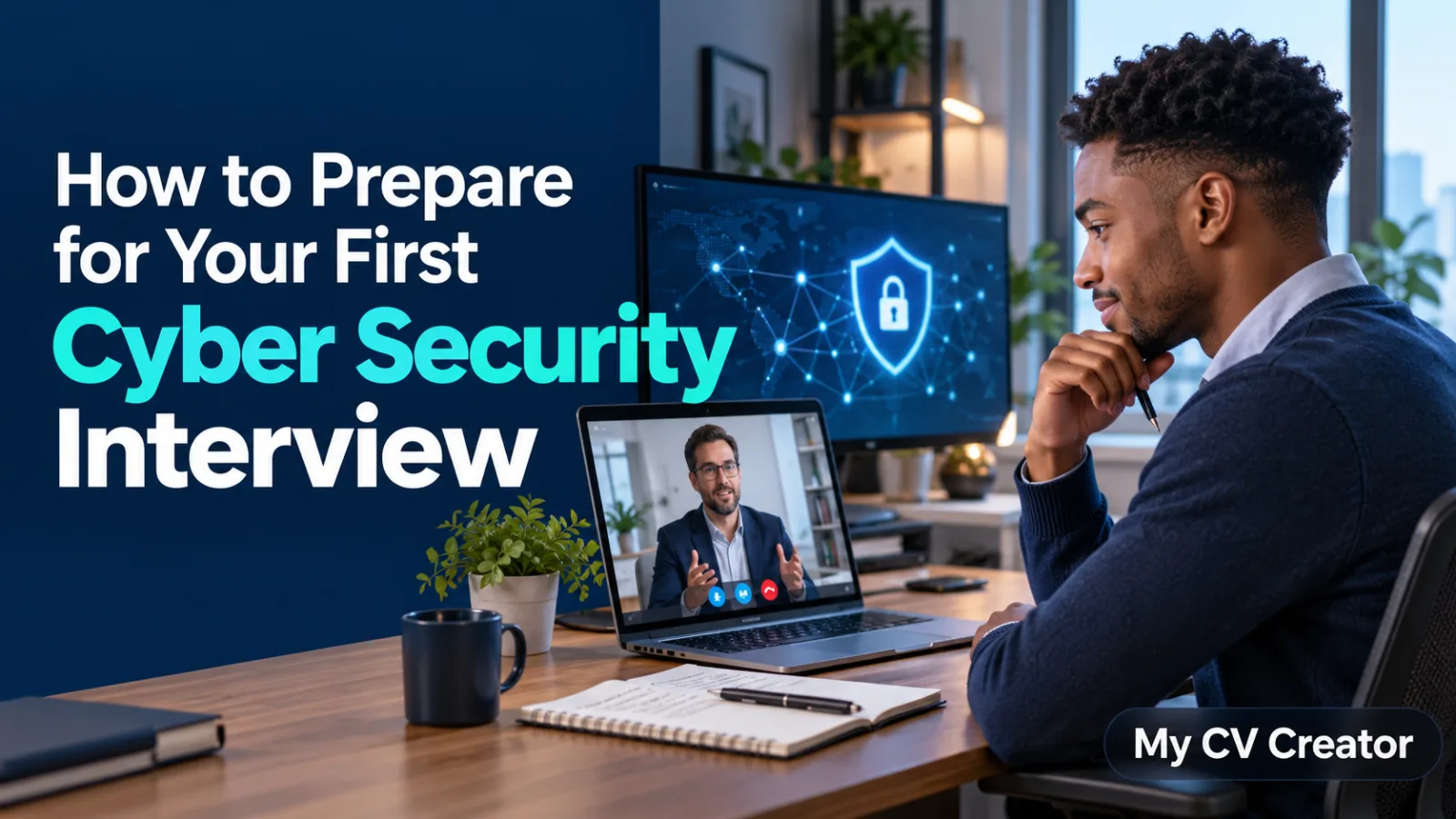
Zoom interviews are “real” interviews just with a camera between you and the hiring team. That camera changes a few things: what you wear needs to work on screen, your background becomes part of your first impression, and your tech setup can either make you look polished or distract everyone.
This guide pulls together the most important Zoom interview best practices covering what to wear, the best backgrounds, lighting, audio, camera setup, body language, note-taking, and follow-up so you can show up calm and professional.
Some fundamentals here align with common Zoom-interview guidance (prepare like an in-person interview, test your setup, pick a professional background, manage body language, ask questions, take notes, and send a thank-you email).
What a Zoom interview is (and what interviewers are judging)
A Zoom interview is still an interview: your answers matter most. But interviewers are also (quietly) judging:
-
Communication clarity (can they hear you clearly? do you pause well? do you ramble?)
-
Professionalism (appearance, setting, punctuality, courtesy)
-
Preparedness (you know the role/company; you have examples ready)
-
Remote-readiness (can you work effectively with video calls, tools, and distractions?)
Remote interviews can make it harder to read social cues, so your structure and presence matter even more.
The night before: set yourself up to win
1) Research like it’s in-person
Do the same prep you’d do for a physical office interview:
-
Review the job description and highlight the top 5 requirements
-
Prepare 6–8 stories that prove you meet them (use the STAR method)
-
Read the company website and recent updates
-
Learn who’s interviewing you (LinkedIn quick scan)
This “standard prep” is still the biggest performance driver even on Zoom.
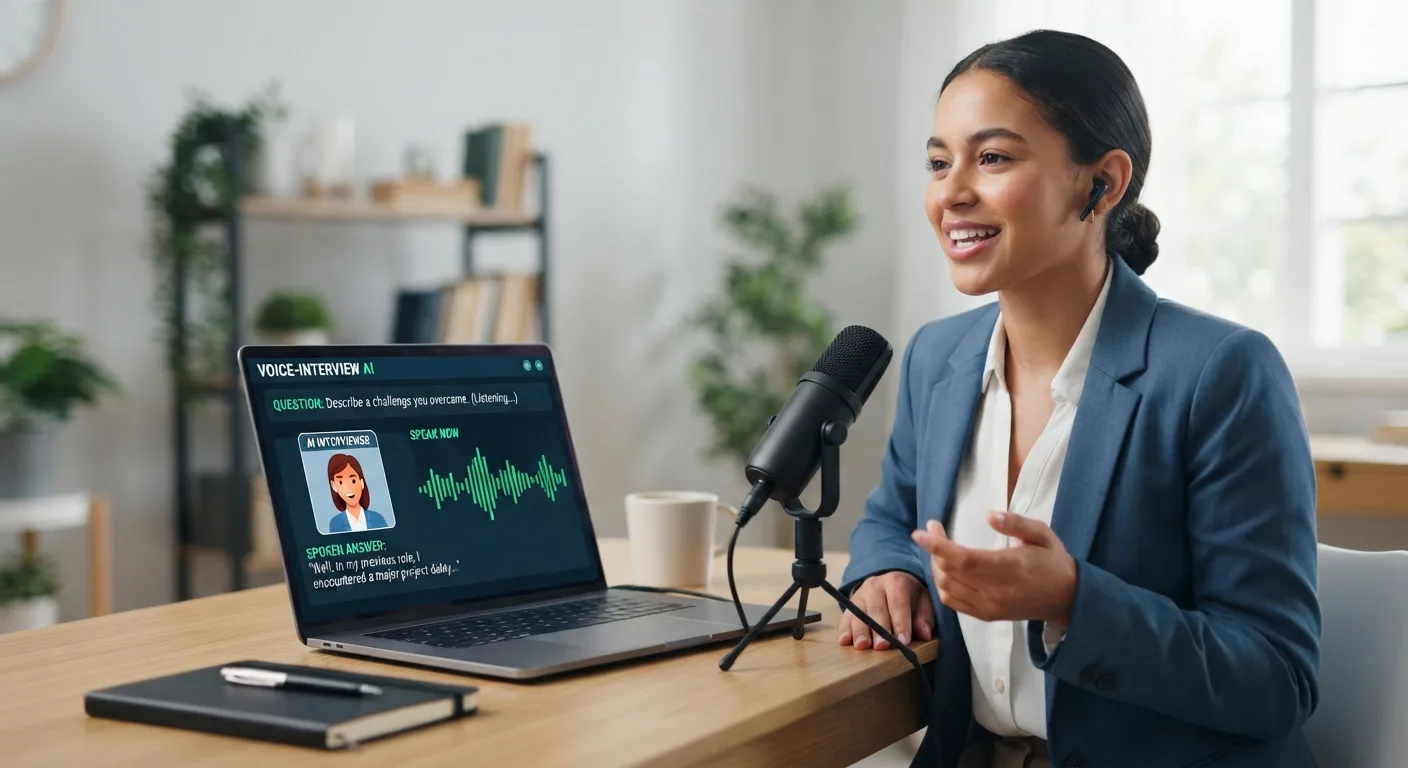
2) Test your Zoom audio/video (for real, not “I think it works”)
Two reliable options:
-
Use Zoom’s test meeting page to check your mic, speaker, and camera.
-
Or test inside the Zoom app:
-
Check your video preview and camera selection in Zoom settings.
-
Run Test speaker / Test microphone under Audio settings.
-
Pro tip: use headphones if you can it reduces echo and improves clarity.
3) Confirm your internet + have a backup plan
If your connection is unstable:
-
Move closer to the router or use ethernet (if available)
-
Ask household members to pause heavy streaming during your call
-
Have a mobile hotspot ready as Plan B
Also write down the recruiter’s phone number so you can quickly call if the video drops.
4) Prepare your “Zoom desk”
Keep it simple and quiet:
-
Water (not noisy ice)
-
Notepad + pen (typing can be loud)
-
Printed résumé + job description (off-camera)
ADVERTISEMENT -
A short question list (more on that below)
What to wear for a Zoom interview (so you look sharp on camera)
A Zoom outfit isn’t just “formal” it’s camera-friendly.
The best rule
Dress like you would for an in-person interview at that company (or one level more polished if unsure).
What works best on video
-
Solid colors (navy, charcoal, white/cream, muted jewel tones)
-
Simple necklines (collar, blouse, crew neck)
-
Light layering (a blazer or structured cardigan looks instantly professional)
-
Minimal accessories (avoid noisy bangles, distracting large earrings)
Indeed’s guidance on virtual interview dress emphasizes dressing professionally and considering your backdrop for confidence and presentation.
What to avoid (camera problems)
-
Tiny patterns (thin stripes, small checks) → can “shimmer” on video
-
Very bright white if your lighting is harsh (can blow out your face)
-
Head-to-toe black if your background is dark (you can blend in)
-
Loud jewelry that reflects light
“Top-half only” is a trap
Yes, they usually only see your top but:
-
You might stand up unexpectedly (camera slips, you grab something, etc.)
-
Wearing full professional clothes changes your posture and mindset
Backgrounds that look professional (without being boring)
Your goal is: clean, quiet, and non-distracting.
Best real-life background options
-
A plain wall + one subtle item (plant, framed art, bookshelf)
-
A tidy office corner
-
A neutral curtain
A professional, uncluttered background and good lighting are widely recommended for virtual interviews.
Blur vs. virtual background: which should you use?
Blur is usually safest: it hides mess while still looking natural.
Virtual backgrounds can be okay, but only if:
-
They don’t glitch around your hair/face
-
They’re business-appropriate
-
They don’t look like you’re “floating”
Zoom explicitly supports virtual backgrounds, but you should keep them professional and test them before the call.
Quick background checklist
-
Nothing personal/sensitive visible (documents, photos, messy laundry, etc.)
ADVERTISEMENT -
No moving people behind you
-
No bright windows behind you (it turns you into a silhouette)
Lighting: the easiest way to instantly look more confident
Bad lighting makes even a great candidate look tired or unprepared.
The best setup
-
Face a window or light source (light in front of you)
-
Avoid backlighting (window behind you = silhouette)
-
If possible, use a soft lamp or ring light in front
Harvard’s career guidance specifically recommends facing a window (when possible) and avoiding backlighting for video interviews.
Camera angle matters too
-
Put your camera at eye level (stack books under your laptop)
-
Sit an arm’s length away so your head and shoulders are framed well
Camera + audio settings that make you sound and look professional
Camera basics
-
Clean the lens (seriously fingerprints blur everything)
-
Use your laptop/phone on a stable surface (no handheld shaking)
-
Look into the camera lens when answering important questions (it reads as eye contact)
Audio basics
-
Use wired headphones or a solid headset if you have one
-
Turn off notifications (calls, WhatsApp, email pop-ups)
-
Choose a quiet room and close windows if street noise is heavy
Zoom provides built-in audio testing (speaker + microphone) so you can verify before the interview.
How to behave on Zoom (so you don’t “feel awkward” on camera)
Body language that reads well on vide
-
Sit up straight, shoulders relaxed
-
Smile when greeting and when listening (natural, not forced)
-
Nod occasionally to show you’re engaged
-
Use small hand gestures (too big can blur)
Guidance for Zoom interviews often emphasizes posture, attentiveness, and clear delivery because virtual calls reduce social cues.
Manage pauses and interruptions
Video calls have tiny delays. Help the conversation flow:
-
Finish your sentences fully
-
Pause briefly after they ask a question (1 second) to avoid talking over them
-
If you didn’t hear something: “Sorry could you repeat the last part of the question?”
ADVERTISEMENT
And if tech issues happen, don’t panic interviewers are used to it.
Using notes in a Zoom interview (without looking like you’re reading)
One advantage of Zoom: you can keep notes nearby but use them smartly.
Best way to place notes
-
Put bullet notes near the camera, not on your lap
-
Keep them short: keywords, numbers, 2–3 stories you want to mention
-
Avoid full scripts (you’ll sound flat)
What notes you should have
-
Your 60-second “Tell me about yourself”
-
3–5 achievements (with numbers)
-
2 projects you can explain clearly
-
Questions to ask at the end
Taking notes with pen and paper is also quieter than typing.
Questions to ask at the end (Zoom-friendly and impressive)
Always ask questions it signals preparation and genuine interest.
Here are strong options:
-
“What would success look like in the first 60–90 days?”
-
“What are the biggest challenges the team is solving right now?”
-
“How does the team collaborate day-to-day, especially remotely?”
-
“What skills separate someone who’s good from someone who’s great in this role?”
-
“What are the next steps and timeline?”
If something goes wrong: a calm recovery script
If your audio cuts
“Sorry I think my audio dropped for a moment. Could you repeat that last sentence?”
If your video freezes
“My video seems to be unstable if it’s okay, I’ll turn video off for 30 seconds to stabilize the connection.”
If you get disconnected
-
Rejoin immediately
-
If it fails, call the recruiter and explain briefly (having their number ready helps).
After the interview: thank-you email that actually helps you
Send a thank-you email the same day or within 24 hours.
Simple structure:
-
Thank them for their time
-
Mention one specific topic you discussed
-
Reconfirm interest
-
Add a short value reminder (one strength that matches the role)
Mini example:
Subject: Thank you — [Role] interview
Hi [Name],
Thank you for speaking with me today about the [Role]. I enjoyed learning more about [team/project].
I’m excited about the opportunity, especially because [reason tied to role]. Based on our conversation, I’m confident I can help with [specific need].
Thanks again looking forward to the next steps.
Best regards,
[Your Name]
If they gave you a decision timeline, wait until after that date to follow up (or the day after).
The ultimate Zoom interview checklist
24 hours before
-
Research company + role
-
Prepare 6–8 STAR stories
-
Pick outfit and test it on camera
-
Test Zoom audio/video (test meeting or settings)
-
Confirm interview link + time zone
60 minutes before
-
Silence notifications, close extra apps
-
Set lighting (light in front, not behind)
-
Clean background, lock the door if possible
-
Put water + notepad nearby
5 minutes before
-
Join early
-
Take 3 deep breaths
-
Smile when they join
FAQs
Should I use a virtual background?
Only if it looks natural and professional and you’ve tested it. Otherwise, use blur or a clean real background.
What colors look best on Zoom?
Solid mid-tone colors usually look best; avoid tiny patterns and anything that blends into your background.
Is it okay to have notes?
Yes keep them brief and near the camera so you don’t keep looking down.
How early should I join?
Aim for 3–5 minutes early. Enough to look punctual without creating awkward waiting time.